
In recent years, Chromebooks have gained popularity for their simplicity, affordability, and seamless integration with Google’s suite of applications. However, some users may find themselves longing for the familiarity and functionality of the Windows operating system, particularly Windows 7, which was widely praised for its stability and user-friendly interface. Although Chromebooks run on Google’s Chrome OS, it is possible to use Windows 7 on these devices through virtualization or remote desktop solutions. In this guide, we will explore various methods to bring the Windows 7 experience to your Chromebook, allowing you to leverage the capabilities of both operating systems. Whether you need access to specific Windows applications or simply prefer the look and feel of Windows 7, this guide will help you navigate the process of integrating it with your Chromebook while keeping in mind the limitations and technical requirements involved.
Installing Windows 7 on a Chromebook is not a straightforward process, as Chromebooks are designed to run Chrome OS, not Windows. However, if you still want to proceed, you can try using a virtual machine or a remote desktop connection to access Windows 7 on your Chromebook.
Method 1: Virtual Machine (Using CloudReady and VirtualBox)
1.Prepare your Chromebook: Create a recovery image of your Chromebook using the Chromebook Recovery Utility, in case you need to restore it to its original state.
2.Install CloudReady: CloudReady is a Chromium OS-based operating system that allows you to run VirtualBox. Follow the instructions from Neverware’s website (https://www.neverware.com/) to create a CloudReady USB installer and install CloudReady on your Chromebook.
3.Install VirtualBox: Once CloudReady is installed, download and install VirtualBox for Linux from the official website (https://www.virtualbox.org/).
4.Download the Windows 7 ISO file: You’ll need a legitimate Windows 7 ISO file to create a virtual machine. Download it from the Microsoft website or another trusted source.
5.Create a Windows 7 virtual machine: Launch VirtualBox and click “New” to create a new virtual machine. Choose “Microsoft Windows” as the operating system and “Windows 7” as the version. Allocate the desired amount of RAM and create a virtual hard disk for the virtual machine.
6.Install Windows 7: Start the virtual machine and select the Windows 7 ISO file as the boot media. Follow the on-screen instructions to install Windows 7 on the virtual machine.
7.Run Windows 7 on your Chromebook: Once the installation is complete, you can run the Windows 7 virtual machine on your Chromebook using VirtualBox.
Method 2: Remote Desktop Connection
This method requires a Windows 7 computer and a stable internet connection.
1.Set up the remote desktop on your Windows 7 computer: Enable Remote Desktop on your Windows 7 PC by going to Control Panel > System and Security > System > Remote settings, and checking “Allow Remote Assistance connections to this computer.”
2.Install Chrome Remote Desktop on both devices: Download and install Chrome Remote Desktop on both your Chromebook and Windows 7 computer. You can find it in the Chrome Web Store (https://chrome.google.com/webstore/).
3.Configure Chrome Remote Desktop: Follow the setup instructions to configure Chrome Remote Desktop on your Windows 7 computer, taking note of the access code.
4.Connect your Chromebook to your Windows 7 computer: Open Chrome Remote Desktop on your Chromebook and enter the access code from your Windows 7 computer. You’ll now be able to control your Windows 7 computer remotely from your Chromebook.
In conclusion, while Chromebooks are designed to run Chrome OS, it is possible to access Windows on these devices through virtualization or remote desktop solutions. Though these methods come with limitations and may require advanced technical skills, they can offer users the familiarity and functionality of Windows alongside Chrome OS. When attempting these processes, it is essential to understand the risks involved and take necessary precautions to protect your data and device. Ultimately, using Windows on a Chromebook can provide a versatile computing experience for users with diverse needs.
FAQs:
How to update Software on my Chromebook?
Ans:
In the bottom left corner, click on About ChromeOS. Under “Google ChromeOS,” locate the version of the Chrome operating system your Chromebook is running. Click on Check for updates. If your Chromebook discovers a software update, it will automatically begin downloading it.
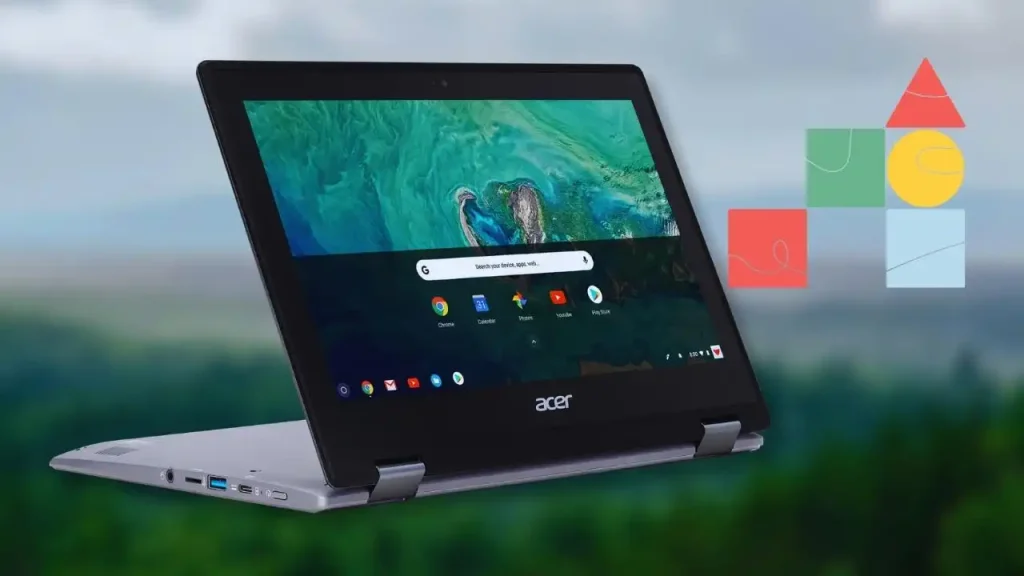
Do Chromebooks have Windows installed?
Ans:
Chromebooks operate on Google’s Chrome OS, rendering Windows and macOS programs incompatible with these devices. Nonetheless, Chromebooks possess their own unique benefits compared to other laptops.
Can Chromebook run Linux?
Ans:
Linux on ChromeOS, often referred to as Crostini, enables users to run Linux applications for development alongside the standard ChromeOS desktop and apps. This integration provides developers with an optimal blend of both worlds.
Related posts:
 How To Install Chromebook OS on Linux int?
 How To Transfer Files From Windows to Chromebook: Mastering the Art of File Transfer
 Your Chromebook, Your Way: How To Install Adblock on Your School Chromebook
 Experience War Thunder on Chromebook: Install War Thunder Now
 How To Install Fonts On Chromebook For Cricut?